
Set Up Missed-Call Text-Back for HVAC in 10 Min
A 2-truck San Antonio HVAC owner set up missed-call text-back in 8 minutes on a Saturday. See exactly how he did it with 3 message variants.
Eddie runs two HVAC trucks out of San Antonio. Him and one tech. No office manager. During a San Antonio summer, his phone does not stop. He was missing calls constantly, he knew it, and he’d been putting off fixing it because he assumed setup would eat a full Saturday.
It ate 8 minutes of a Saturday morning. He was watching the Spurs by 9:15 AM.
Operator details anonymized. Based on a real LeadExploder account matching this profile.

Here’s exactly what he did, step by step, so you can do the same.
What do you need before you start?
Three things. Your business phone number (the one on your Google Business Profile and your website). Access to your LeadExploder account. And 10 minutes with your phone nearby so you can test the setup at the end.
That’s it. You don’t need your phone carrier involved. You don’t need to forward calls or change your existing number. The system connects to your number at the platform level and monitors for missed calls. Your number stays the same. Your existing setup doesn’t change.
If you’re forwarding calls from a Google Voice number or a RingCentral line, note the forwarded number, not your personal cell. The text-back fires from whichever number the customer actually dialed.
Step 1: Connect your business phone number
Log in to LeadExploder. Go to Settings, then Phone Numbers. If your business number is already in the system (it is if you’ve used LeadExploder for any other feature), select it. If not, add it using the Add Number flow. You’ll enter the number and verify ownership with a short verification call or SMS code. This takes 2 minutes.
Once the number is connected, you’ll see a toggle labeled Missed Call Text-Back. Turn it on. At this point, the automation is active but has no message configured. The next step writes the message.
Step 2: Write your first-reply message
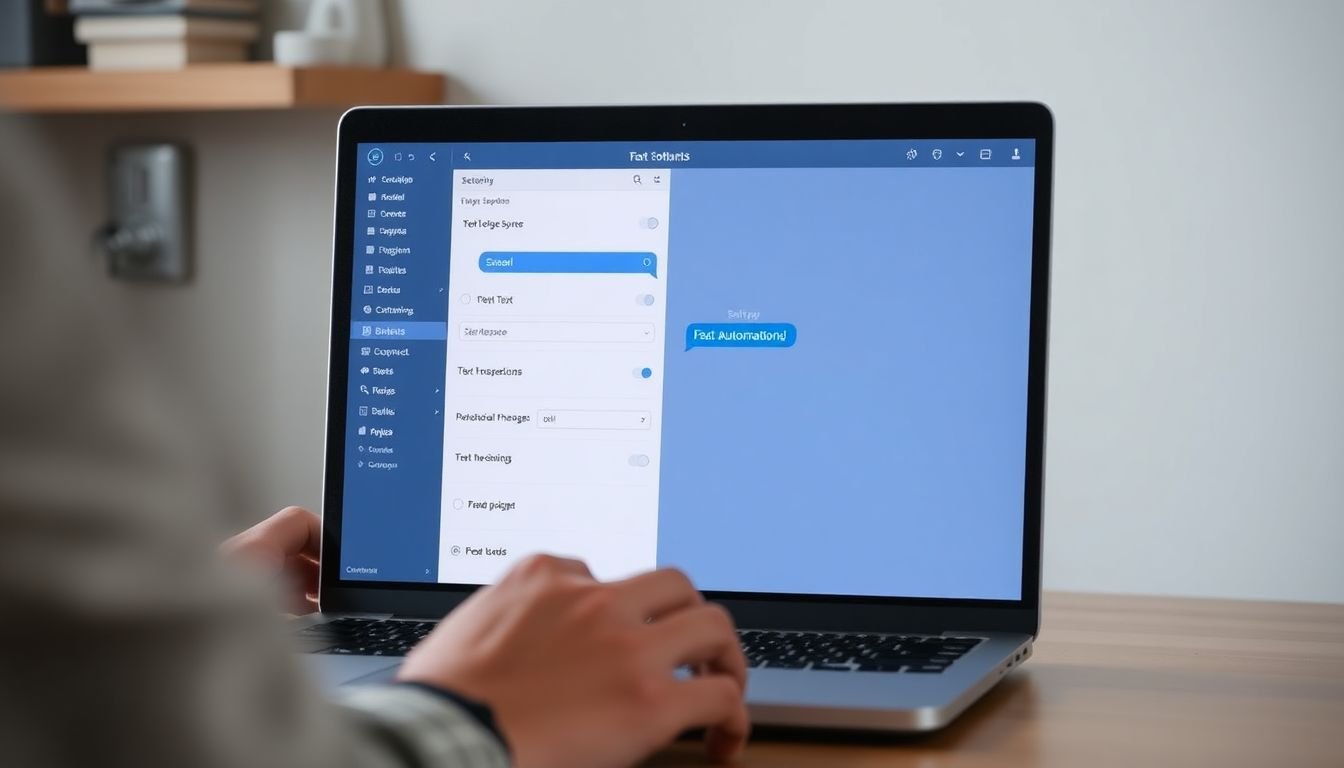
Go to Automation, then Missed Call Reply. You’ll see a text field for your message. This is the SMS that goes out within 8 seconds of a missed call.
Eddie’s message is:
Hey, this is Eddie with Arctic Air HVAC. Sorry I missed you. What’s going on with your system and what part of San Antonio are you in? I’ll get you taken care of.
That message does three things: establishes who you are, acknowledges the missed call without over-apologizing, and asks the two questions you need to dispatch: what’s the issue and where is the customer.
Write yours. Keep it under 160 characters if possible (that’s one SMS segment, which matters for delivery cost at volume). Read it out loud. If it sounds like a marketing email, rewrite it.
Step 3: Set the trigger conditions
Under Trigger Settings, you choose when the automation fires. You have two main options: All Missed Calls or After Hours Only.
For HVAC in San Antonio, Eddie runs All Missed Calls. Here’s why: during peak summer, his tech is on a job from 8 AM to 6 PM and his phone rings constantly. He misses calls during business hours too, not just after hours. Running the automation only after hours would mean half his daytime missed calls get no follow-up.
If you have a receptionist who handles daytime calls reliably, After Hours Only might make more sense for you. Set your business hours in the same panel and the system will only fire the text-back outside those hours.
One more option: you can exclude calls shorter than a minimum ring duration. Set this to 10 seconds to avoid firing text-backs at robocalls and phone-tag situations where the caller hung up before the voicemail even picked up. Eddie has this set to 12 seconds.
Step 4: Set up your 3 message variants for HVAC

A single generic message works. But if you want to lift your reply rate, use message variants tied to time of day or season. Eddie runs three:
Emergency AC (June through September, after 6 PM):
Eddie here with Arctic Air. Saw I missed your call. If your A/C is out, I can get someone there tonight. What’s the situation and what zip are you in?
Routine maintenance (all hours, October through May):
Hey, it’s Eddie at Arctic Air. Sorry I missed you. Are you looking to schedule a tune-up, or is something going on with your system? What part of SA are you in?
New install inquiry (triggered by callers who came from the website’s new-system page, tracked via call source):
Hey, this is Eddie with Arctic Air. Missed your call. Are you looking at replacing your system? I can walk you through options in 5 minutes. What’s your timeline?
The generic message that doesn’t work for HVAC: “Thank you for calling Arctic Air HVAC. We appreciate your business and will return your call during business hours.” Nobody replies to that. It reads as an autoresponder, it asks nothing, and it gives the caller no reason to engage.
For a look at how this same setup performs in Houston’s summer peak, the HVAC text-back in action post covers real numbers from a 3-truck Houston shop including reply rates, booking rates, and average ticket recovery.
Step 5: Test with a real call from a second phone
Before you call this live, test it. Pull out a second phone (yours, your tech’s, your spouse’s, anyone’s) and call your business number. Let it ring through to voicemail. Don’t answer it.
Wait 8 seconds. You should receive a text on the phone you used to call. If you do, the setup is working. If you don’t, check that the automation is toggled on and that the phone number in the system matches the number you called.
Eddie’s test took 45 seconds. The text arrived in 6 seconds. He called it a day and watched Spurs highlights.
What to do when the automation fires incorrectly
Occasionally, the system will send a text-back on a call that was technically answered. This happens most often in two scenarios: a call that was answered but immediately dropped due to a carrier glitch, or a call that was answered by a team member whose phone didn’t register the pick-up in the system in time.
When this happens, the customer receives a text-back even though they spoke with someone. This can be confusing or even feel unprofessional.
The fix is straightforward. First, add a confirmation step in your answer workflow: when your team answers a call, they should note it as answered in LeadExploder within 30 seconds. Most of the time this happens automatically. But if your team is answering calls on a personal cell that isn’t integrated with the platform, the system doesn’t know the call was answered.
Second, build a brief template for the “oops” situation: “Hey, looks like our system sent you an automated text even though we spoke. Disregard that. If you need anything else before your appointment, just reply here.” That message turns a confusing moment into a trust signal: you noticed, you acknowledged it, and you made it easy to continue the conversation.
Third, if the incorrect fires are happening repeatedly, check whether your number integration is using a webhook or a polling method. Polling introduces a delay that can cause the missed-call trigger to fire before the call-answered signal arrives. Switch to webhook if possible.
How to run a proper pre-launch test sequence
The two-phone test in Step 5 is the minimum viable check. Before you go fully live, run a more thorough sequence so you know every scenario behaves as expected.
Test 1: Missed call during business hours. Call from a cell, let it ring to voicemail, don’t answer. Confirm text arrives within 10 seconds with the correct business-hours message.
Test 2: Missed call after hours. Wait until outside your configured business hours or temporarily adjust the hours setting. Repeat the call. Confirm the after-hours message variant fires, not the business-hours one.
Test 3: Answered call. Call from a second phone and answer it on your business number within 4 rings. Confirm no text-back fires. Wait 30 seconds to be certain.
Test 4: Short-duration call. Call and hang up after 3 seconds, before the minimum ring duration threshold. Confirm no text-back fires.
Test 5: Reply handling. After a text-back fires in Test 1, reply to it from the second phone. Confirm the reply appears in your LeadExploder inbox and that any notification alerts (push, email, SMS to on-call) fire correctly.
This full sequence takes about 15 minutes and tells you definitively whether the system is behaving as designed before a real customer calls.
What to change after your first 30 days based on reply data
The setup you build on day one is a starting point, not a final product. After 30 days of live data, you will have enough to optimize two things.
Optimize the message. Look at your reply rate by message variant. If your emergency AC variant is getting 50% replies and your maintenance variant is getting 22%, the maintenance message needs a rewrite. The most common reason for low reply rates on a well-timed text is that the message asks a question the customer can’t answer in one sentence, or it sounds automated. Read the low-performing variants out loud and rewrite anything that doesn’t sound like a person.
Optimize the trigger conditions. Look at which missed calls generated no reply and no booked job. Filter for calls under 8 seconds. If a large share of your no-reply texts went to sub-8-second calls, tighten your minimum ring duration to 15 seconds. If you’re getting replies from calls at all hours, verify that your after-hours variant is correctly configured for your timezone.
For a comprehensive guide on scaling the system beyond the 10-minute setup, the AI receptionist setup playbook walks through the 14-day build for HVAC shops that want to layer AI-handled follow-up on top of the base text-back system.
What happens after the lead replies?
When a customer replies to the text-back, the conversation appears in your LeadExploder inbox. Your team picks it up from there. You can reply from the platform on desktop or from the mobile app. The customer sees a text conversation with your business number throughout. It feels to them like they’re texting a person, not a software platform.
If nobody on your team picks up the conversation within a set window (Eddie uses 4 hours during business hours, 8 hours overnight), you can set an escalation reminder. The system pings whoever is on duty that there’s a live lead waiting.
The setup is the easy part. The ROI is in the follow-through: when a customer replies, someone has to pick up the conversation within a reasonable window. The text-back buys you time. Your team closes the loop.
What did Eddie’s first 30 days look like?
Before setup: averaging 31 missed calls per month in peak summer. Zero recovery system. Estimated missed revenue at $720 average HVAC ticket: $13,392 per month in uncaptured leads.
After setup: 31 missed calls triggered 31 text-backs. 19 callers replied. 11 booked a job. That is a 35% booking rate on recovered leads, and $7,920 in revenue from calls that previously went to voicemail.
His platform cost is $497 per month. He recovered $7,920 in month one.
What to do this week
If you run HVAC and you’re not on a missed-call text-back system, you’re losing jobs to competitors who are. The setup is 10 minutes. The math works on the first recovered job.
Book a demo and see missed-call text-back running live.
Alex Rocha is the founder of Mastodon Marketing, a Houston-based growth agency that runs marketing for service businesses across 70+ client sites. He built LeadExploder as the operating system he wished his clients had on day one. Learn more about Alex →
Frequently asked questions
Do I need a technical background to set up missed-call text-back?
No. The setup involves connecting your business phone number, writing a short reply message, and setting the trigger conditions. Most HVAC owners complete this in under 15 minutes with no outside help.
Should I run missed-call text-back 24 hours a day or after hours only?
For HVAC, run it 24 hours. A/C emergencies happen at 11 PM in July. If someone calls at 11 PM and gets a text back that says someone will be there, you win the job. Most competitors have an after-hours voicemail and nothing else.
Will the text-back message sound automated to my customers?
Only if you write it that way. Short messages that use your first name, ask a specific question, and skip corporate language read as human. The message your customer sees is an SMS from your business number. That's how you'd text a customer you already know.
What if someone calls from a number that can't receive texts?
Landlines and some VOIP numbers can't receive SMS. The system identifies these and skips the text-back. You won't see an error and the caller won't get a failed delivery notice. Your team should still have a process to follow up on those missed calls manually.